Troubleshooting: DNS
Definition
DNS stands for Domain Name System. For everyday users, DNS is like the contacts list on your phone: you type a website name (for example: tumbuhsehat.id), then DNS finds the “real address” (IP address) so your browser knows which server to connect to.
Without DNS, we would need to memorize IP numbers one by one. That is why DNS makes the internet much easier to use.
DNS Functions
- Translates domain names into IP addresses so websites can be opened.
- Helps speed up access with DNS cache (previously looked-up addresses can be remembered temporarily).
- Helps route traffic to the correct server when a service uses multiple servers.
- Can help resolve access issues on certain networks/ISPs, depending on the DNS policy being used.
- In some services, DNS can also provide basic security features such as blocking malicious domains.
Related Issues
- The TumbuhSehat website cannot be accessed on certain WiFi networks, but works normally on smartphone hotspot.
- There are signs of domain resolution issues or access restrictions from certain ISPs/networks.
Solution: Cloudflare Installation
Download the App
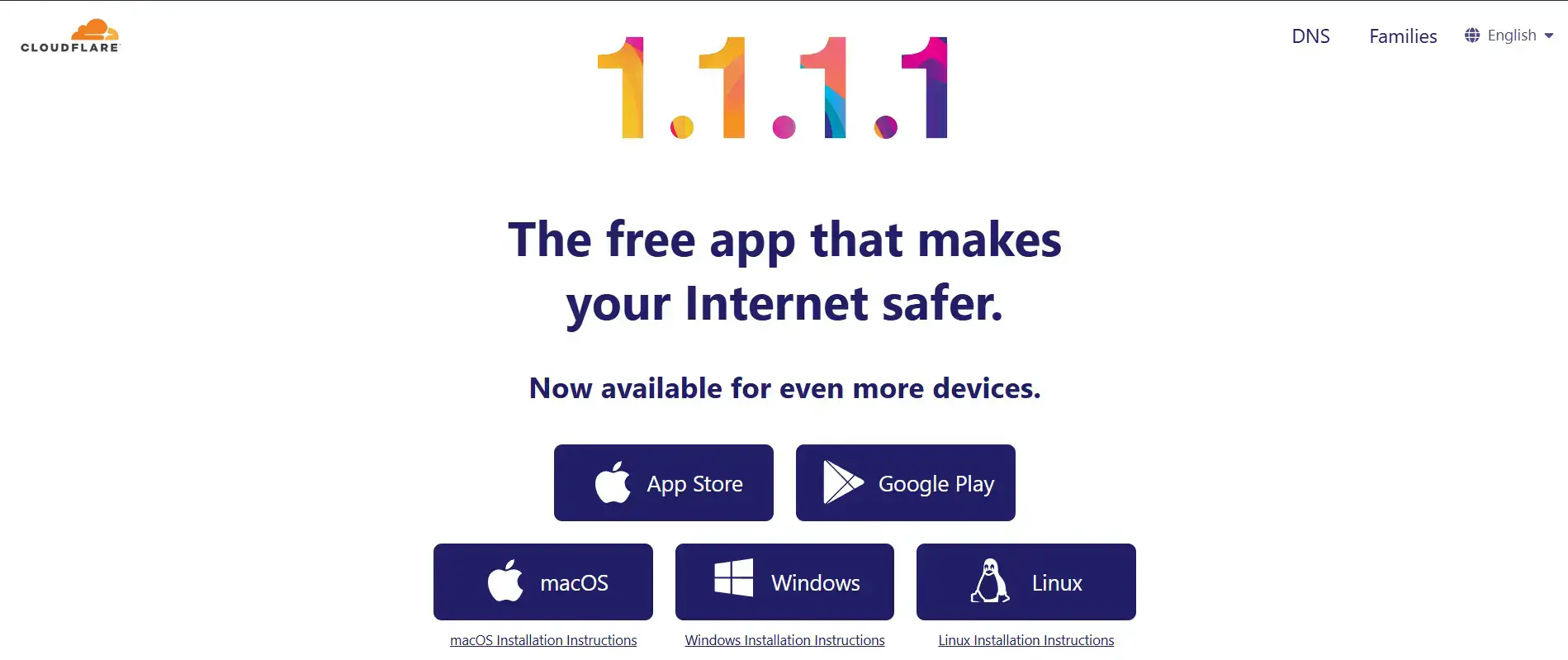
Download the Cloudflare app by visiting 1.1.1.1 directly, or download it based on your device:
Download Cloudflare for Windows
| OS version | Windows 10 LTSC, Windows 11, Windows 365 Cloud PC running Windows 11 |
|---|---|
| Processor | AMD64 / x86-64 or ARM64 /AArch64 |
| .NET Framework version | 4.7.2 or later |
| HD space | 184 MB |
| Memory | 3 MB |
| Network interface type | Wi-Fi or LAN |
| MTU | 1381 bytes recommended |
Installation
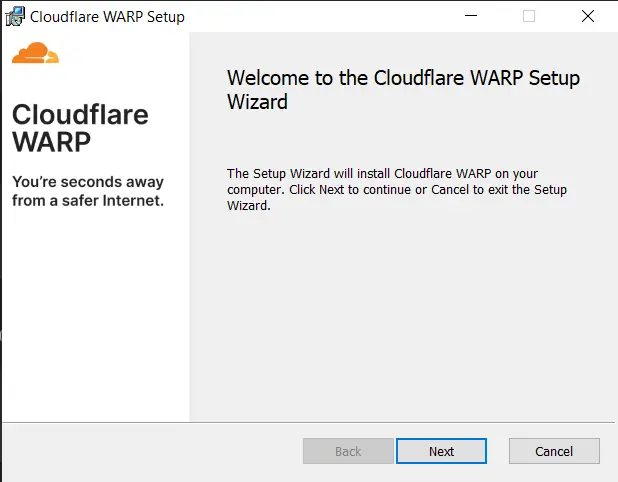
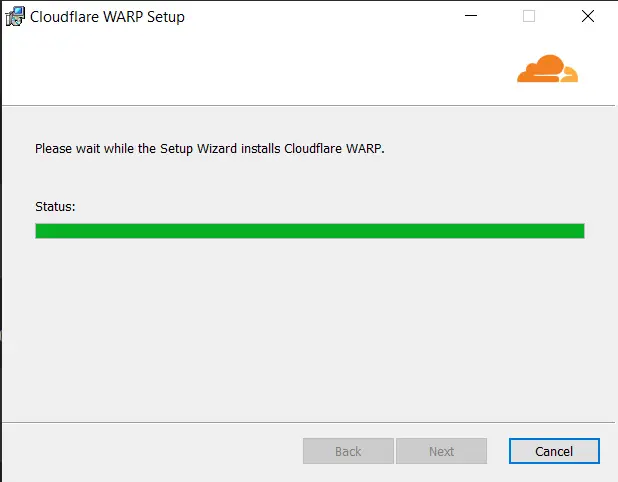
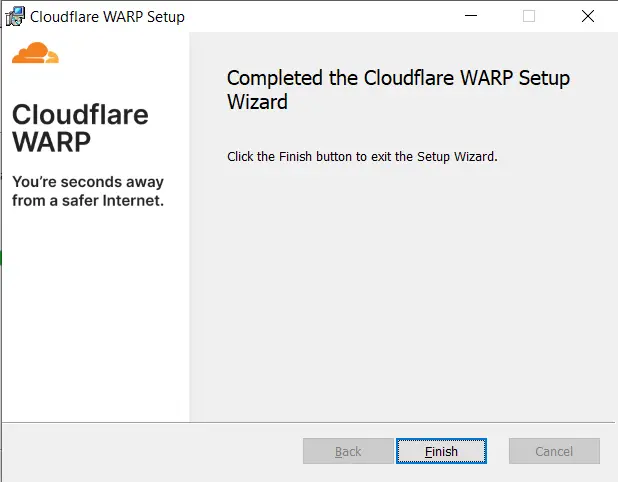
Run the App
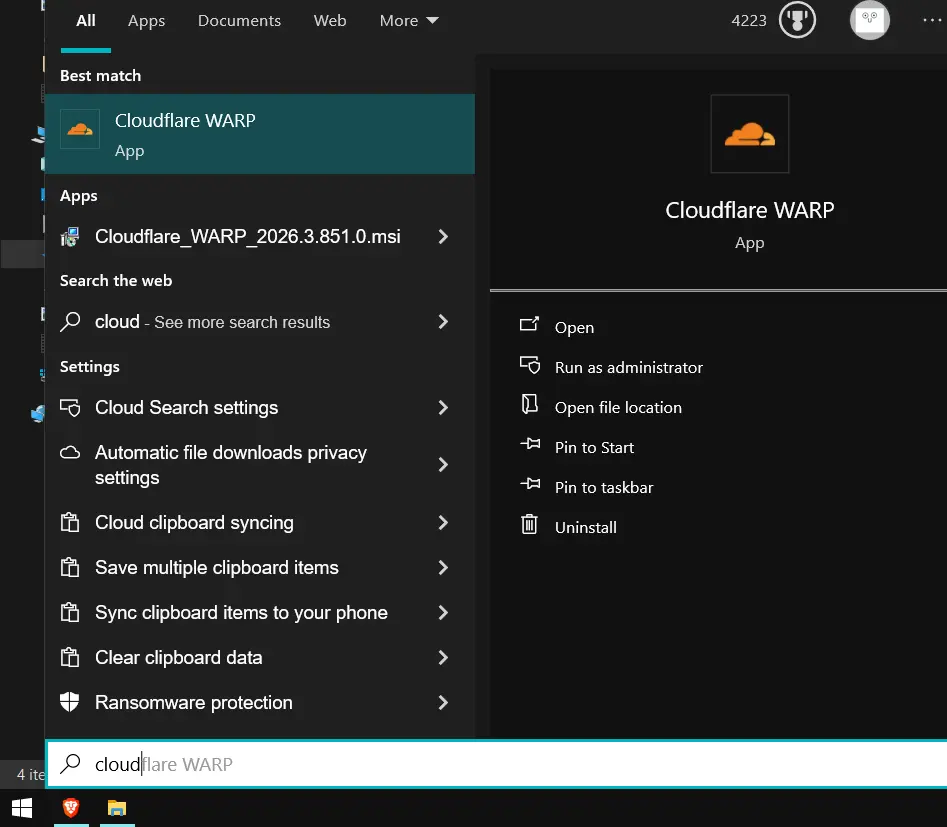
For Windows users, press the Windows key to search apps, then type “Cloudflare WARP” until it appears as shown in the image.
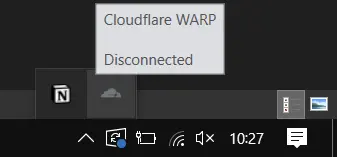
The app will run in the background. Click the toolbar in the lower-right corner of Windows, find the cloud icon as shown, then left-click it. You will see a consent screen, follow the steps below:
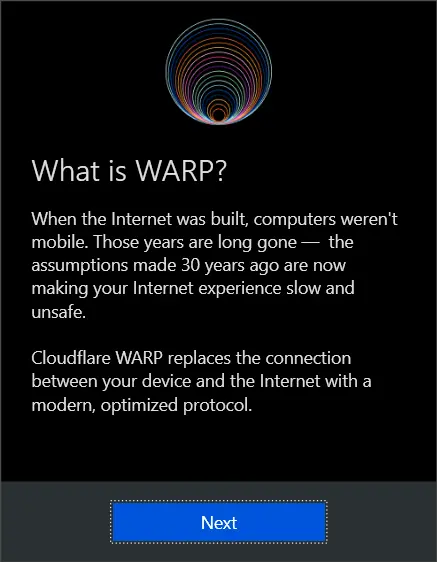
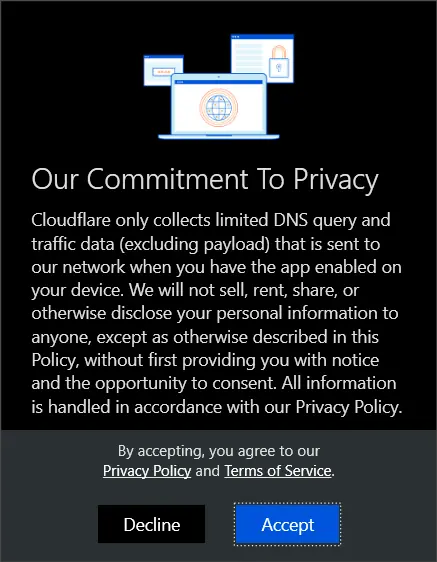


DNS Testing (Self Troubleshoot)
After DNS is active, try opening the 3 websites below using 2 browsers (Chrome, Edge, Safari, or others)
- Open this page in your browser: TumbuhSehat, make sure it loads.
- Open this page in your browser: TumbuhSehat Login, make sure it loads and you can sign in.
- Open this page in your browser: PING Test, make sure it appears as shown below:
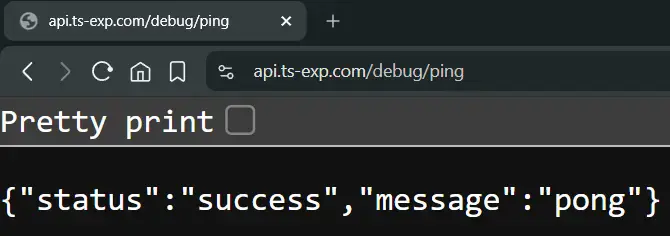
If the login issue still cannot be resolved, contact us and include screenshots. From the 3 pages above, mention which ones are accessible and which are not.
This helps our team understand the issue faster.