ERR_CONNECTION_TIMED_OUT
Issue
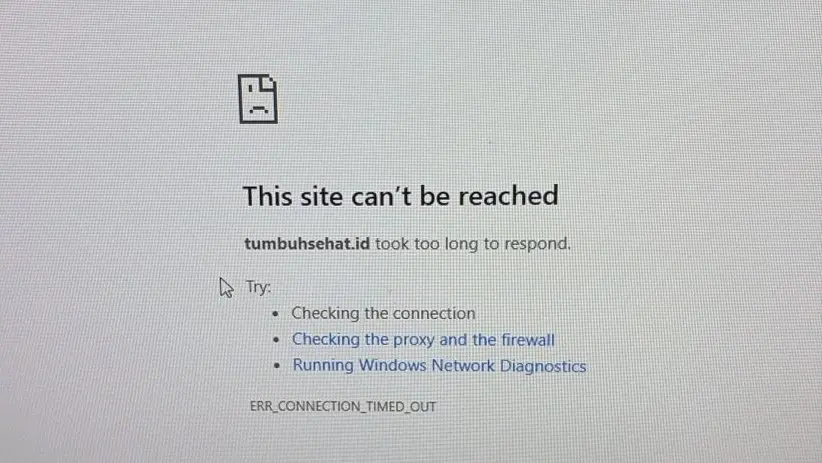
When opening TumbuhSehat.id, does your browser suddenly show ERR_CONNECTION_TIMED_OUT while other websites still load normally?
In simple terms, this error appears when your browser takes too long to complete a connection to the TumbuhSehat.id server. Causes may vary, including unstable local internet, ISP routing issues, or our server security system (firewall) automatically blocking your public IP for safety reasons.
Solutions
No need to panic. You do not need deep technical knowledge to try these steps:
Restart Your WiFi Router or Internet Connection
This is the first and often most effective step. Most home internet providers use dynamic IP addresses. Restarting your network device can refresh your route and assign a new public IP.
For WiFi Users: Turn off your WiFi router by unplugging the power cable. Wait around 1 to 2 minutes, then turn it back on.
For LAN or Wired Users: Unplug the LAN cable from your laptop/PC for about 10 to 15 seconds, then plug it back in until the connection is detected. If the issue remains, restart the modem/ONT or router connected to that cable.
For Smartphone / Tablet Users: Enable Airplane Mode to disable network connectivity for about 1 minute. Then disable Airplane Mode to reconnect your mobile data.
After your internet reconnects, refresh the affected page on TumbuhSehat.id.
Try a Different Internet Network
Sometimes the issue is caused by your ISP’s route to the TumbuhSehat.id data center.
If you are currently on WiFi or LAN, switch to mobile data from your smartphone (for example Telkomsel, XL, or Indosat) using Tethering or Hotspot.
If TumbuhSehat.id opens successfully over mobile data, the issue is likely from your original ISP network (WiFi / LAN) that is experiencing routing problems.
Use the 1.1.1.1 App (Cloudflare WARP)
If TumbuhSehat.id is still inaccessible and switching networks is inconvenient, use the 1.1.1.1 app. It helps improve routing and bypass route-level blocks, often more effective than changing DNS manually.
Download the free app 1.1.1.1: Faster Internet from Google Play Store (Android), App Store (iOS), or desktop version for laptop/PC.
Open the app, then tap the main toggle button.
Wait until the status changes to Connected.
For full installation steps, visit the DNS page.
Try opening Website TumbuhSehat again.
Check Your IP Address for Reporting
If all self-troubleshooting steps above are done but the error still appears, your public IP may have been automatically blocked by the TumbuhSehat.id firewall. This can happen after repeated rapid refreshes or multiple failed login attempts.
To request access restoration, follow these steps:
Open a new browser tab and visit an IP checker, such as https://www.google.com/search?q=ipsaya.com or whatismyip.com.
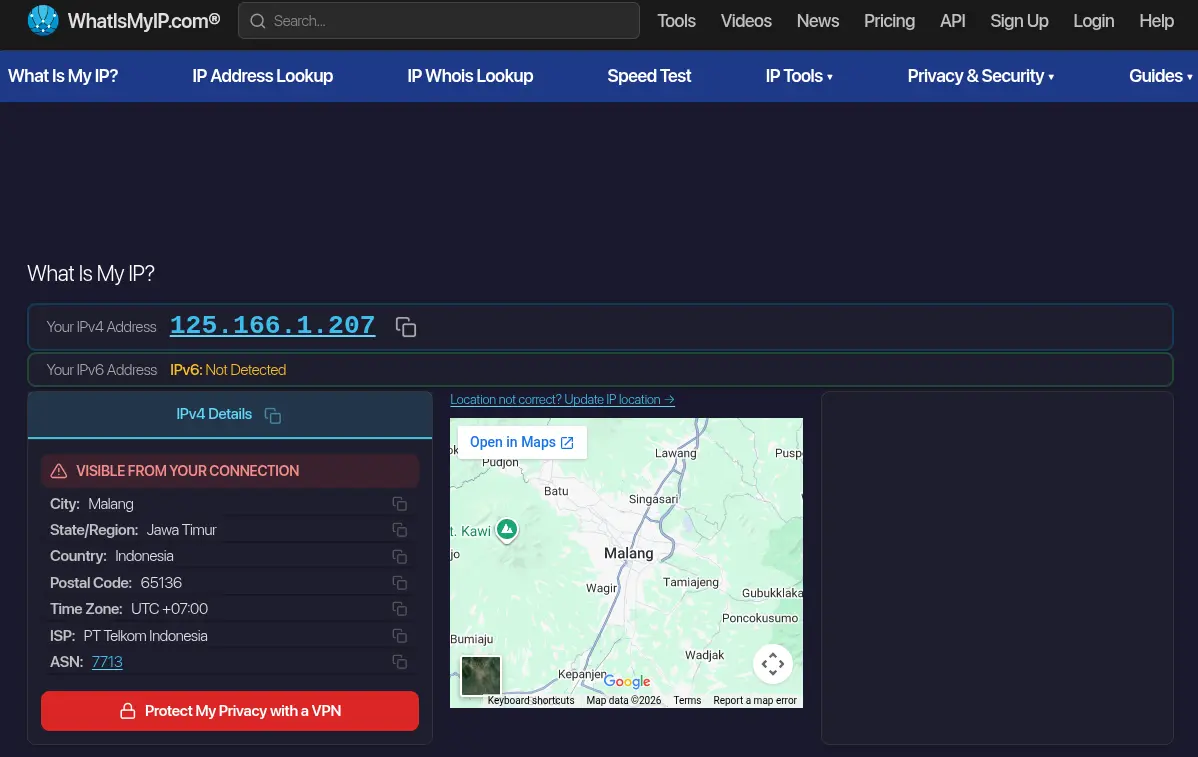
After taking your IP screenshot, continue with technical checks in Windows 10 using CMD:
Open the Start menu, type CMD / Command Prompt, then press Enter.
Run this command to test connection to TumbuhSehat.id:
ping tumbuhsehat.id -n 10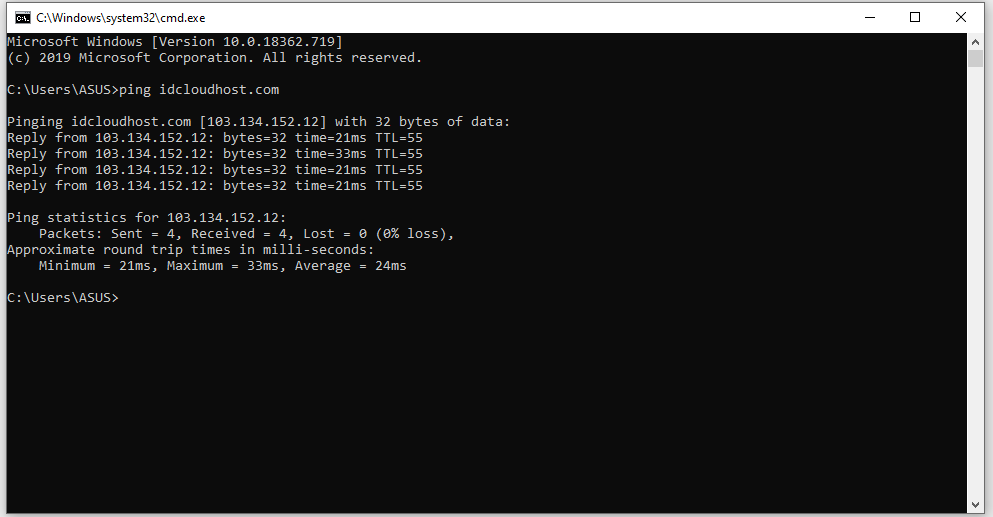
Example screenshot of ping result Run this command to check connection path (traceroute):
tracert tumbuhsehat.id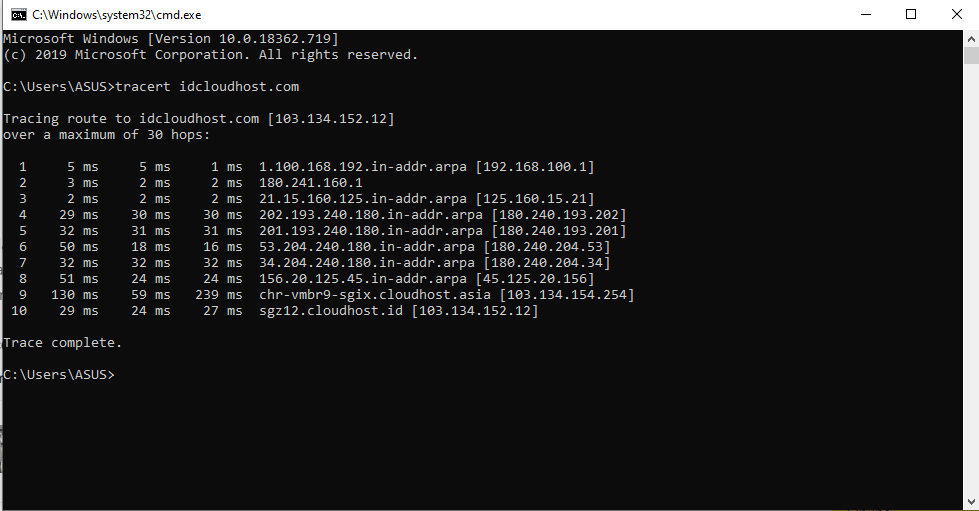
Example screenshot of tracert result Wait until the process is complete, then take screenshots of the CMD results.
Or follow this detailed guide: Tutorial ping dan tracert
Send us your public IP, IP screenshot, and screenshots of ping and traceroute results for server-side checking. Mention that you are experiencing connection timed out.
Conclusion
The ERR_CONNECTION_TIMED_OUT message while accessing TumbuhSehat.id is usually not permanent. By restarting your connection, using routing apps like 1.1.1.1, or reporting your IP to the TumbuhSehat.id team, this issue can usually be resolved quickly.